Configuring an external firewall can provide an additional layer of security for your virtual machines and environment
Go to the VPS management menu
- Log in to your personal account using your credentials
- Go to the "Services ⇒ My Services" section
- Select the required VPS and go to its management page by clicking on the VPS tariff or by clicking on the three dots and selecting "View Details"
Creating firewall rules
- Select the "Firewall" tab in the left sidebar
- Click the "+ Add" button (+ Add) to create a new firewall rule
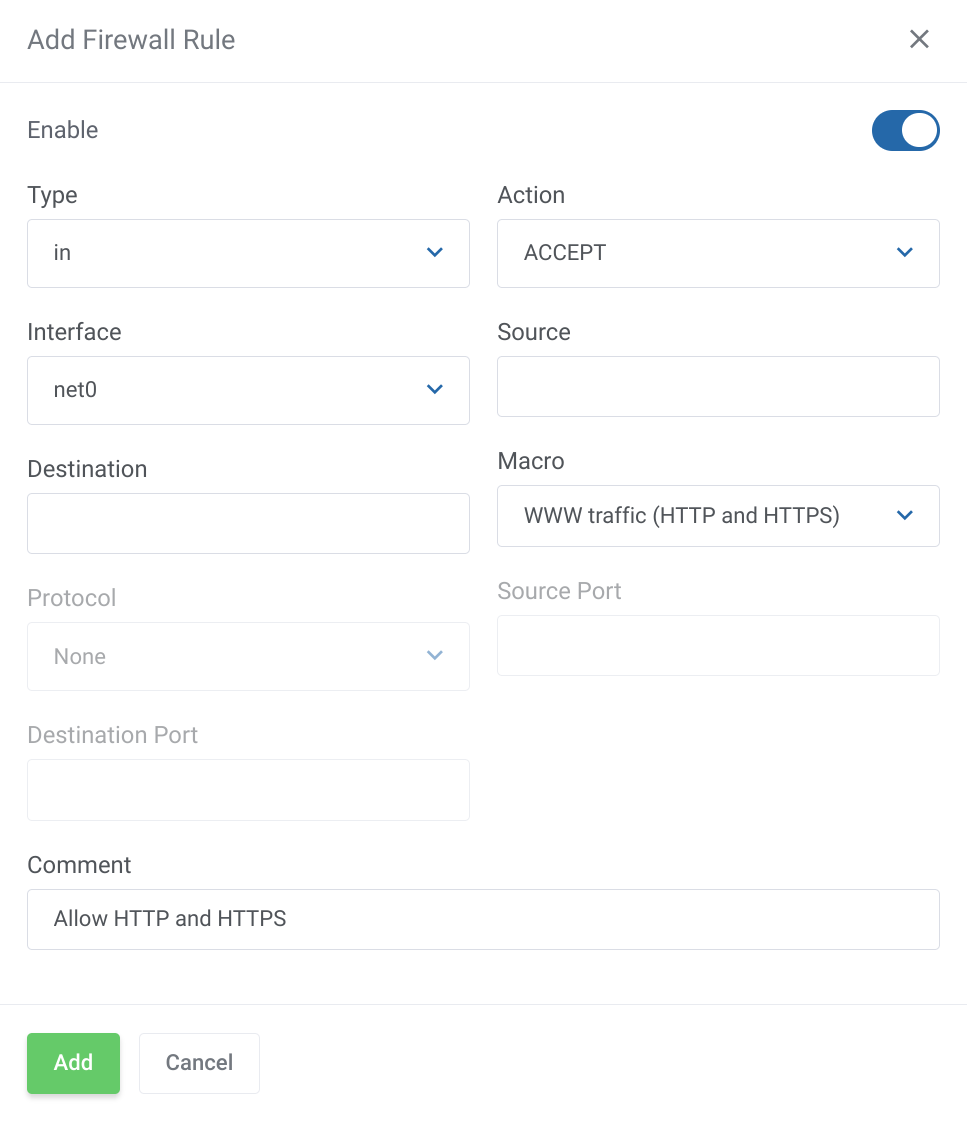
- Specify the following parameters in the rule settings:
- Enable: Check the box to enable this rule
- Type: Choose for which type of traffic this rule will be used, in - for incoming traffic, out - for outgoing traffic. Traffic direction is considered relative to the VPS
- Action: Specify what to do with traffic when it falls under this rule
- Interface: Select the network interface for your VPS on which the rule will be applied. Interfaces are named as net plus a number starting from zero, regardless of how this interface is named inside the VPS. If the VPS has one interface, the name will be net0
- Source: Specify the IP address or range of IP addresses from which access is allowed or denied or leave blank if for all
- Destination: Specify the IP address or range of IP addresses to which the rule will apply or leave blank if for all
- Macro: In order not to specify the protocol and ports, you can choose a pre-prepared macro
- Protocol: Select the required network protocol, such as TCP or UDP.
- Source Port: Specify the desired ports or port range to deny or allow traffic from which traffic will be sent
- Destination Port: Specify the desired ports or port range to deny or allow traffic on which traffic will be expected
- Comment: A short comment
- Click the "Add" button to save the new firewall rule
- Repeat steps 2-4 to add more rules as needed
Example of a rule that allows inbound traffic for a web server
Enabling the firewall
- Select the "Firewall Options" tab in the left sidebar
- Click on the pencil to go to edit
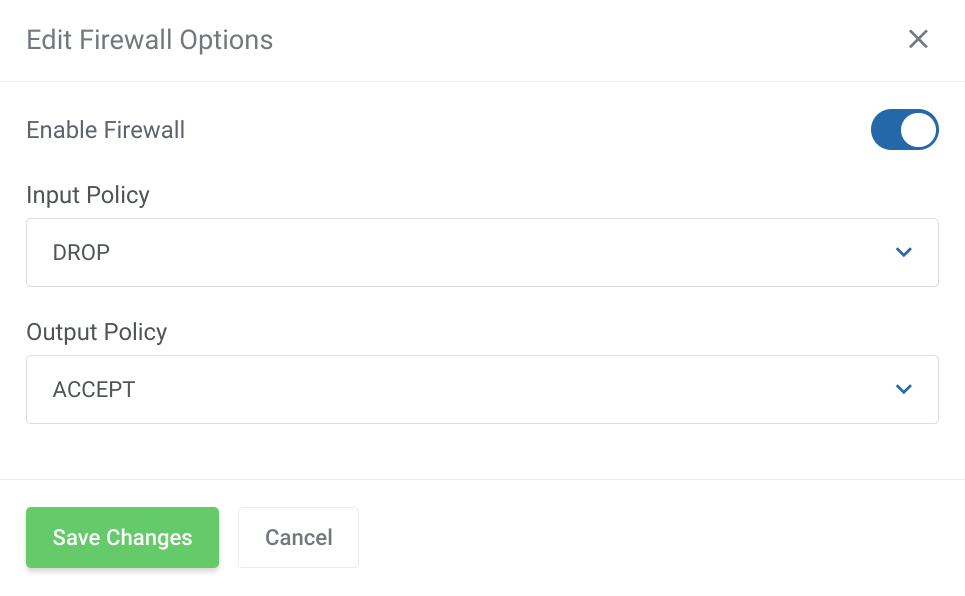
- In the firewall settings, specify the following parameters:
- Enable Firewall: Check to send all traffic through the firewall or uncheck to disable the firewall
- Input Policy: Define the default policy for incoming traffic
- Output Policy: Define the default policy for output traffic
- Click the "Save Changes" button to save your firewall settings
An example of settings when the firewall is enabled